ACRS21: Leadership Option 1
Step 1: Log In to The AET
Go to http://www.theaet.com and choose Log In.
Step 2: Add an Office
Select PROFILE, then choose Enter your FFA offices.
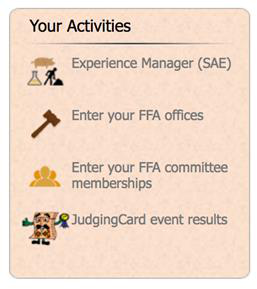
Choose Add New Office to open the office entry form.
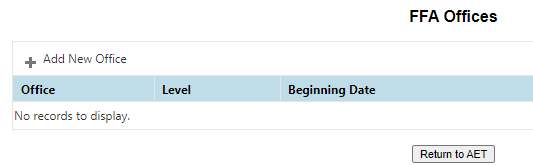
Enter the following information:
- Office: Select your office or the best fit.
- Level: Select whether your office is at the chapter level or above.
- Dates: Enter the beginning and ending dates of your time in office.
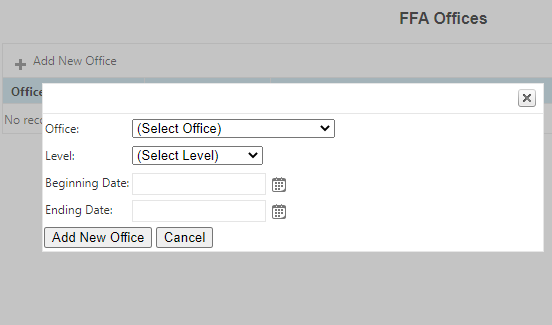
Choose Add New Office to submit.
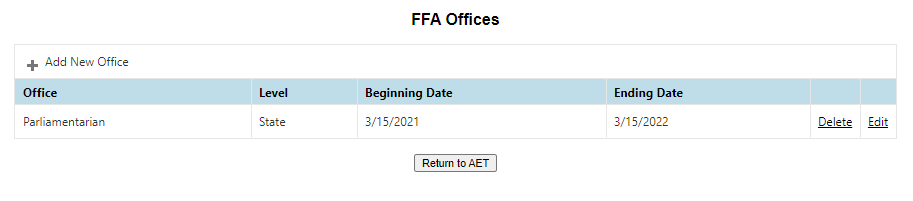
The completed office example lists Parliamentarian at the State level, with a beginning date of March 15, 2021 and an ending date of March 15, 2022.
Step 3: Choose Journal
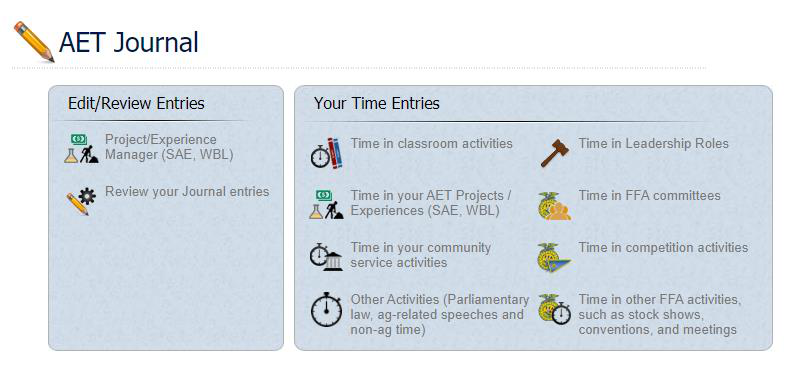
Select Time in Leadership Roles. Complete the following steps in the FFA Office Activity Journal.
a. Describe the Activity
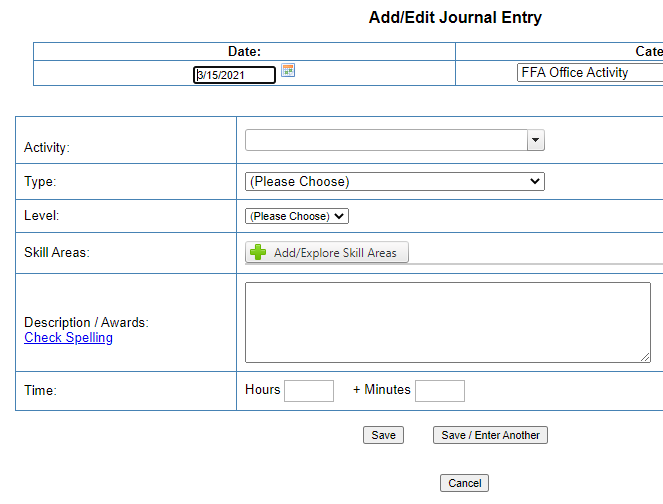
Complete each of the following areas to the best of your ability.
- Activity: Name the activity you participated in. Use the dropdown menu or manually enter the activity, for example, Chapter Meeting. Check that another entry for the activity has not already been automatically generated from the calendar.
- Type: Select the officer position you held as part of the activity.
- Level: Select the level at which the activity took place. Was it a chapter meeting? Was it a regional committee or meeting?
- Time: Record how many hours and/or minutes you attended the activity.
- Description: Describe what happened at the activity. What was accomplished? What was the point of the activity?
b. Choose a Skill
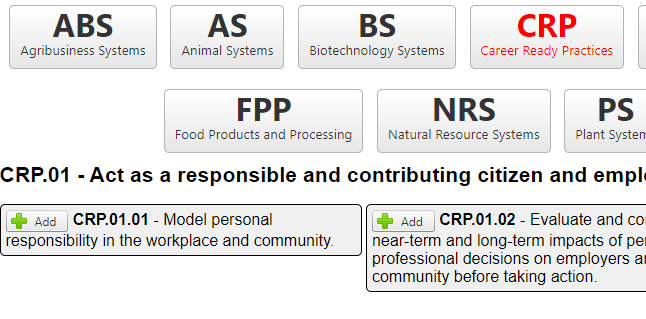
Select a Career Ready Practice that best fits your learning experience. Choose Add/Explore Skill Areas, then open CRP (Career Ready Practices). Review CRP.01, CRP.04, CRP.05, CRP.08, and CRP.09 for useful skills for this area.
Step 4: Save & Submit
The following screenshot shows the PDF's example journal entry. Remember to choose Save or Save / Enter Another at the bottom.
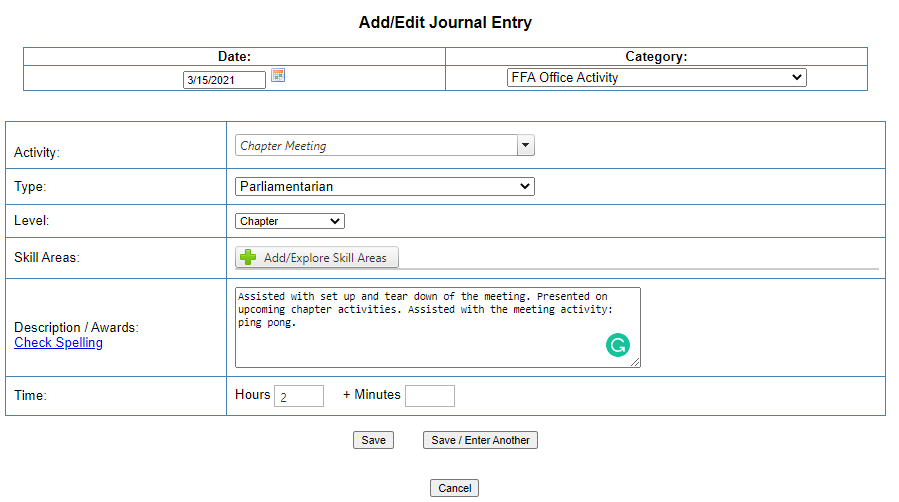
Before saving, select a Career Ready Practice as instructed above. The PDF's example does not show a selected skill.
The example shows:
- Activity: Chapter Meeting
- Type: Parliamentarian
- Level: Chapter
- Description / Awards: Assisted with set up and tear down of the meeting. Presented on upcoming chapter activities. Assisted with the meeting activity: ping pong.
- Time: 2 hours
These are example values. Record your own office, activity details, attendance time, and a Career Ready Practice that best fits your learning experience.
Agricultural Career Readiness Skills for the 21st Century
Certificate Pathway
Questions? acrs21@mail.fresnostate.edu
This HTML version was generated with AI assistance and may contain errors or omissions. The original approved PDF remains the official document of record. An alternative accessible format is available upon request from the document creator in accordance with Title II of the ADA.